
Connecting to Raspberry Pi via SSH
Connecting to Raspberry Pi via SSH
To install JanusEye, you will need to connect to your Raspberry Pi via SSH.
- To connect to the Raspberry Pi, you will use an SSH connection. You need to know your Raspberry Pi's IP address. Log in to your router's web interface; you should be able to see all connected devices.
- For Freebox users (France), go to the "Network Devices" menu, double-click your Raspberry Pi icon, and check the "Connectivity" tab. The IP address appears at the top (e.g., 192.168.1.xxx). For most other providers, it will follow a similar format.
- If you cannot access your router's interface, you can use free tools like "NetPeek" (Linux), "Advanced IP Scanner" (Windows), or the "Fing" app (Smartphone) to scan your network.
On Windows with OpenSSH Client
- Ensure the OpenSSH Client is installed in Settings > Apps > Optional Features.
- Open PowerShell or Command Prompt.
- You now have access to the ssh command.
PS > ssh - Connect to the remote server using the following command:
PS > ssh username@hostname - Replace "username" with your actual username and "hostname" with the IP address or hostname of the server.
- If this is your first time connecting, type "yes" when asked "Are you sure you want to continue connecting?".
- Enter the user's password.
- Once authenticated, you will access the server's command line.
On Linux with Terminal
- In your PC's terminal, enter this code to open the Raspberry Pi terminal:
ssh user@raspberry_ip_address - Replace "user" with the username chosen during installation and "raspberry_ip_address" with your Pi's IP.
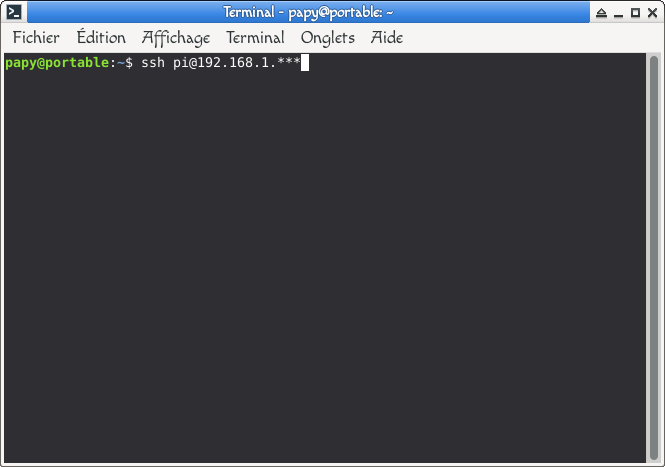
- Type "yes" if prompted, then enter the remote user's password.
- You can now interact directly with your Raspberry Pi.
- Now that you are connected, let's perform a system update.
⚠️ Warning - Critical Step While the system is performing updates (apt upgrade), never unplug your Raspberry Pi's power or disconnect your internet. An interruption during this phase can corrupt the operating system, forcing you to restart the entire installation.
- Enter this command:
sudo apt update 
- Run this command to perform the actual upgrades:
sudo apt upgrade - Type "Y" to start the update process.
- Or use this command to automatically answer "Y":
sudo apt upgrade -y 
- The updates are now finished.

- Verify once more if any updates remain:
sudo apt update - If the response is "All packages are up to date", your system is fully ready.
